How to Tell if Your MikroTik Router Has Been Compromised
For MikroTik administrators, ISPs and MSPs
Review your routers. See how LucidView can help.
Use the guide below to review exposure and plan your next steps. Explore the Portal demo to see router health, security reviews and controlled management access in one place.
Demo access is sent by email. Managed router jobs require a supported, connected router and successful safety checks.
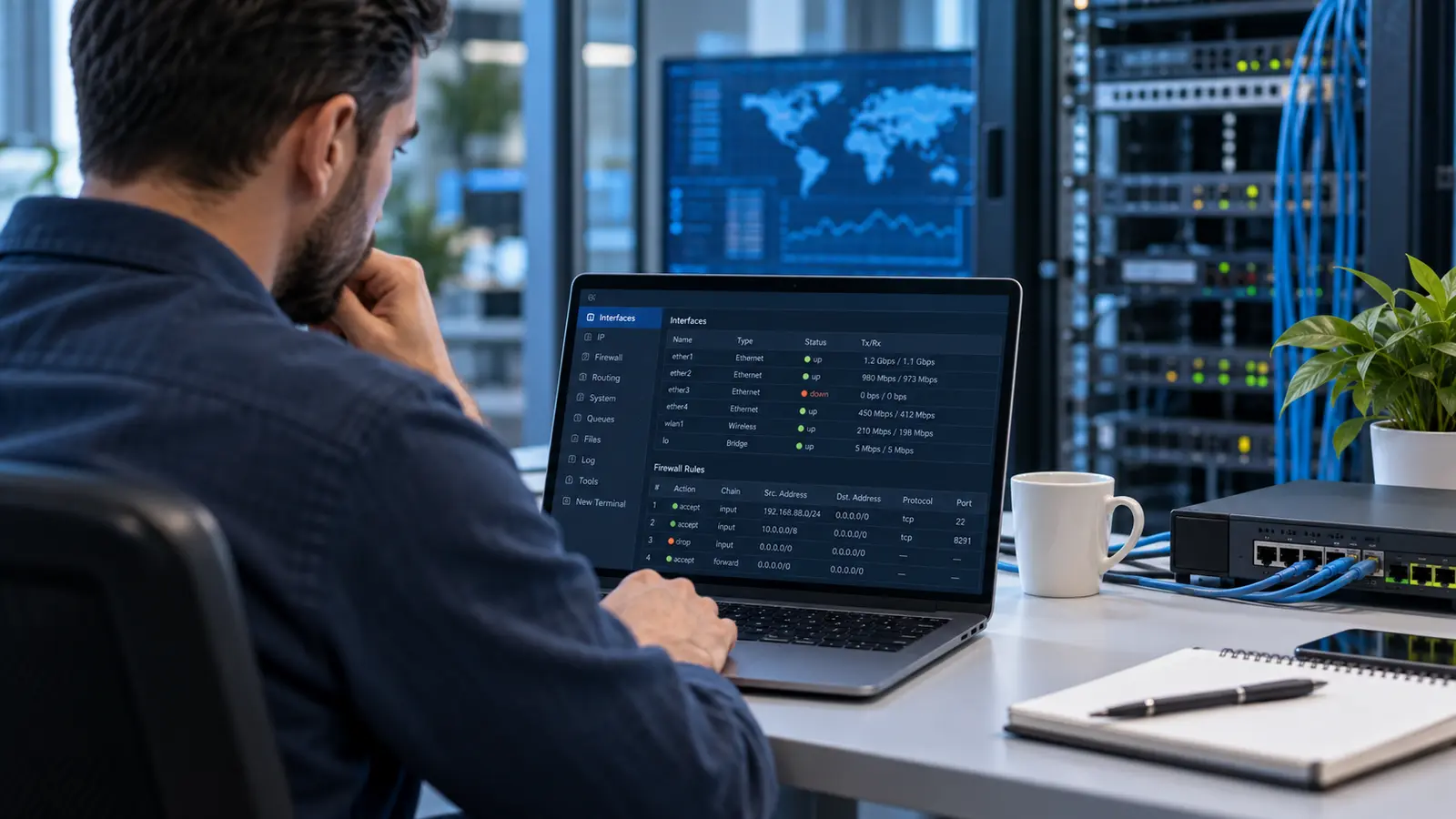
A serious MikroTik RouterOS vulnerability was disclosed in early September 2026. If this is the first you are hearing about it, the important point is straightforward: affected MikroTik routers can be at real risk when management access, especially SSH, is reachable from the internet. Attackers look for that exposed front door first. For the background on the RouterOS issue itself, fixed-version guidance and why this particular vulnerability deserves attention, read LucidView's RouterOS security update article.
This guide is for MikroTik administrators who need to answer the practical question after the alert: "Has my router been compromised, and what should I do now?" Upgrading RouterOS is essential, but it is not the whole answer. You also need to check whether the router was exposed before the fix, whether any unauthorized access was added, and whether the router still has risky management services open.
LucidView wants to be a useful source of truth for the MikroTik community during security incidents like this. If you are not a LucidView client, use the checklist below yourself. It is meant to help you find warning signs, contain the risk, clean up unauthorized access, restore logging and visibility, and harden the router properly.
If you are a LucidView client with connected MikroTik Enforcers, LucidView helps manage this on your behalf. The Portal includes a MikroTik security audit view built for these indicators, so customers are not left guessing whether a connected router looks clean, whether it needs attention, or what action should happen next.
What you are trying to determine
Before changing anything, separate the problem into four questions:
- Was the router running an affected RouterOS version while SSH, WinBox or another management service was reachable from the internet?
- Are there signs that someone added or changed access, such as unknown users, SSH keys, scripts, schedulers, fetch jobs, Netwatch hooks or strange files?
- Has visibility been weakened, for example by reduced logging, suspicious firewall changes, open DNS, or rules whose comments no longer match their real action?
- After the router is contained and cleaned up, can you upgrade RouterOS and RouterBOARD firmware safely without accidentally jumping from RouterOS 6 to 7 or missing the board firmware step?
If you can answer those questions clearly, you are no longer guessing. You have a practical view of whether the router looks clean, whether it needs remediation, and what to do next.
The front door is exposed management access
For this class of RouterOS issue, the most important exposure pattern is simple: a vulnerable MikroTik has SSH or another management service reachable from the internet.
SSH is especially important because active exploitation was reported against routers where SSH was reachable from public networks. Other services also matter. WinBox, WebFig, API, Telnet, FTP, WWW/WWW-SSL and bandwidth-test should not be left open to the public internet unless there is a very specific, source-restricted reason.
A patched RouterOS version closes the known software hole. Closing public management exposure reduces the attacker's ability to reach the front door in the first place.
For most administrators, the safest operating model is not public management. Use a private management path, a VPN, a restricted jump host, or tightly trusted source addresses. If you must keep SSH or WinBox reachable, restrict it to known administrator IPs and review that rule regularly.
Even if a future RouterOS vulnerability exists, it is much harder for a remote attacker to exploit it when the management port is not reachable by them.
Firmware matters, but visibility matters too
A RouterOS firmware update is essential when MikroTik publishes a serious security fix. But an upgrade alone does not prove that a router was never touched before the fix was installed.
There are two separate jobs to do. Patch RouterOS so the known software vulnerability is fixed. Then review and harden the router so exposure, weak visibility or suspicious configuration changes are dealt with properly.
That distinction matters. Firmware helps stop the same known vulnerability being used again. Visibility and hardening help you understand whether there is anything else to clean up.
For RouterOS version guidance and LucidView's guarded fleet-upgrade workflow, read LucidView's RouterOS security update article.
The right order: contain, clean up, restore visibility, then upgrade
For a router that may be exposed or may need a compromise review, the first job is containment. Restrict SSH, WinBox and other management services so they are not reachable from the whole internet. Use tightly trusted source addresses, or use LucidView's private Portal SSH & Winbox Access path instead of leaving public ports open.
The second job is cleanup. Review users, SSH keys, scripts, schedulers, Netwatch hooks, fetch jobs and unknown files. Remove what is not approved and rotate retained administrator credentials.
The third job is visibility. Restore useful logging, make sure important logs are retained or forwarded, review firewall, NAT and DNS exposure, and confirm that rule comments match rule actions.
The fourth job is firmware. Firmware is still essential, but it should not be treated as the whole fix. A firmware update does not remove accounts, scripts, schedulers, firewall rules, DNS exposure, logging changes or tunnels that may already have been added.
Practical signs your MikroTik may need a compromise review
No single sign proves compromise in every case. Some routers have legitimate custom users, scripts or firewall exceptions. The point is to look for combinations of evidence and anything that does not match your known baseline.
1. RouterOS device-mode reports flagged=yes
On RouterOS versions that support it, check device-mode:
/system device-mode print
If you see flagged: yes, treat that as a serious review signal. Do not clear the flag just to make the warning disappear. First preserve evidence and review the router.
2. Unknown full-admin users
Review the user list:
/user print detail
Look for full-admin accounts that you did not create or cannot explain. A widely seen exploitation script or pattern for this September 2026 RouterOS issue typically adds users such as ops, saryn, routeradmini, zkadmin or SystemMikrotik. Those names are useful search terms, but do not treat them as the complete list. Attackers can choose any username, and legitimate administrators can also use custom names. Your own approved administrator list is the important baseline.
Also check SSH keys and recent account-related logs:
/user ssh-keys print detail
/log print where message~"user|ssh|login|ops|saryn|routeradmini|zkadmin|SystemMikrotik"
Also check whether an unexpected user has been disabled but not fully remediated. A disabled account can be useful evidence, but it does not by itself prove the rest of the router is clean.
3. Scripts or schedulers that recreate users
Attackers often want persistence. That means they may add a scheduler or script that recreates an administrator account if someone deletes it.
Check schedulers and scripts:
/system scheduler print detail
/system script print detail
Be careful with script output because it can contain secrets. The important questions are:
- Do you recognize every scheduled task?
- Does any script create users, change passwords, enable services or fetch commands from the internet?
- Does a harmless-looking name hide account creation or firewall changes?
- Are tasks running repeatedly without a clear operational reason?
4. Logs show public SSH attempts or account creation
Check recent logs for login attempts and account changes:
/log print where message~"ssh|login|user|account"
A few failed login attempts are common when SSH is exposed to the internet. Repeated attempts from many public IPs show that the router is being found and tried. Successful logins from unknown public IPs, account creation by SSH, or unusual usernames are much more serious.
The absence of a log entry is not proof of safety. Logs roll over, and a router that needs review may also have weak or incomplete logging.
5. Logging has been weakened
Look at logging rules and memory log settings:
/system logging print
/system logging action print
Warning signs include disabled info, error or critical topics, or a memory log buffer reduced so far that useful evidence disappears quickly. Legitimate administrators can change logging too, but unexplained logging suppression during a security review should be treated carefully.
6. Firewall rules say one thing but do another
Read firewall rules carefully. A rule comment can say drop, while the action is actually accept.
That matters because a quick visual inspection can miss the real behavior. Look for management ports allowed from WAN, broad source ranges, duplicate rules and rules whose comments no longer match their actions.
The management ports to pay attention to include SSH, WinBox, WebFig/WWW, API, Telnet, FTP and bandwidth-test.
7. DNS is exposed to the internet
An open DNS resolver is not the same as RouterOS admin compromise, but it is still a serious operational problem.
Check whether the router accepts DNS requests from the internet and whether DNS forwarding/NAT rules expose a resolver path to outsiders. A router that answers public DNS queries can be abused, can increase load, and can interfere with clean content-filter operation.
Legitimate LAN clients can still use the MikroTik as a DNS cache. The fix is not to blindly break local DNS. The fix is to restrict DNS access to trusted LAN/VPN clients and block internet-origin DNS access.
8. Public management services are reachable
Check what the router is listening on:
/ip service print detail
/tool bandwidth-server print
/ip socks print
/ip proxy print
Then test from outside your network, not only from the LAN. A service can look acceptable from inside while still being reachable from the public internet through NAT, firewall exceptions, port forwards or upstream routing.
If SSH or WinBox must be available remotely, restrict it tightly to trusted source addresses or use a private management path such as LucidView's Portal SSH & Winbox Access feature.
How to contain and clean up if you find these signs
If you find review signals, avoid rushing straight into random changes. Treat the response as containment first, then evidence, cleanup, restored visibility and firmware.
1. Close public management first
Do this before spending time deleting suspicious accounts. If the router is still reachable from the public internet, the same exposure may still be available to an attacker.
First confirm you will not lock yourself out. Then restrict or disable public management services. Adapt these examples to your own trusted administrator ranges:
/ip service print detail
/ip service set [find name=ssh] address=<trusted-admin-subnet>
/ip service set [find name=winbox] address=<trusted-admin-subnet>
/ip service disable [find name=telnet]
/ip service disable [find name=ftp]
/tool bandwidth-server set enabled=no
Also review WebFig/WWW, API, WWW-SSL, firewall input rules, NAT rules and upstream port forwards. The goal is simple: untrusted networks should not be able to reach router management.
2. Preserve enough evidence to understand what happened
Before deleting everything, capture the current state where practical:
/export show-sensitive file=security-review
/log print file=security-review-log
/user print detail
/user ssh-keys print detail
/system scheduler print detail
/system script print detail
Be careful with exported files because they can contain secrets. Store them securely and remove them from the router when you no longer need them.
3. Remove unauthorized access and persistence
Now clean up the things that should not be there. Review and remove unknown full-admin users, unknown SSH keys, suspicious scripts, schedulers, Netwatch hooks, fetch jobs, proxy/SOCKS settings, tunnels and unfamiliar files.
Persistence matters. A suspicious scheduler or script can recreate an account after you delete it. Do not only remove the obvious user account and stop there.
Rotate retained administrator passwords and keys after cleanup. If an administrator credential may have been exposed, keeping the same password after cleanup weakens the whole exercise.
4. Restore visibility
A compromised or badly maintained router may have weak logging. Restore useful logs, check log action sizes, confirm important topics are enabled, and forward logs where you normally collect them.
Also review firewall comments against actual rule actions. A rule comment can say drop while the rule action is really accept. During a security review, the action is what matters.
5. Upgrade RouterOS and RouterBOARD firmware safely
Upgrade RouterOS to the fixed version for the router's current release line. Do not accidentally turn a RouterOS 6 security update into an unplanned RouterOS 7 migration. Plan RouterOS 7 migrations separately.
After RouterOS is upgraded, check RouterBOARD firmware as well. A complete upgrade process should verify disk space, create a useful text export backup, upgrade the package, reboot, upgrade RouterBOARD firmware where needed, reboot again if required, and then confirm the router came back cleanly.
6. Re-check from outside the network
After hardening, test from outside the LAN. A router can look safe from the inside while still being reachable through a public IP, NAT rule, upstream firewall exception or secondary service path.
A router can be on the latest firmware and still need hardening. Firmware fixes the known RouterOS vulnerability. Hardening deals with exposure, unauthorized access and configuration changes that may already exist on the router. Both steps matter.
How LucidView gives you a lucid view
Everything above can be done manually by a careful MikroTik administrator. The difficulty is doing it consistently across a fleet, especially during a security event when routers may have different RouterOS versions, different exposure, different logs and different local configuration history.
That is where LucidView helps its clients. For connected MikroTik Enforcers, LucidView provides a security audit view built for this kind of review: RouterOS version, external management exposure, DNS exposure, RouterOS flagged state, user/account indicators, scripts, schedulers, logging health, router resources and whether safe text exports can be preserved. The customer can see which routers look clean, which need attention, and what action should happen next.
LucidView also helps with the mitigation work. It can guide or queue remedial jobs to harden management access, remove suspicious users, keys or persistence where found, restore visibility, and then run guarded RouterOS and RouterBOARD firmware upgrades where supported.
A major protection is LucidView's private SSH and WinBox path through the Portal. Instead of leaving management open on the public internet, a client can keep public SSH/WinBox closed and request controlled access when needed.
That is the practical value: the same careful steps in this guide become much easier when the audit, access path, hardening jobs and firmware workflow are managed from one place.
If you have supported MikroTiks that are not yet connected, create a free Portal account or explore the Portal demo. Trial eligibility applies to router serial numbers new to the Portal; reinstalling or reconnecting a previously registered router does not start a new trial. See Pricing for current subscription and trial terms.
The main takeaway
The safest MikroTik fleet is not only a patched fleet. It is a fleet with visibility: patched, reviewed, hardened and managed through a controlled access path.
If SSH is exposed to the internet, attackers get a direct path to try every new RouterOS management vulnerability. If SSH and WinBox are kept behind a private, controlled management path, the risk is much lower.
For MikroTik administrators, this article is a public checklist for doing that work yourself. For connected LucidView clients, the same discipline becomes a managed audit, hardening and upgrade workflow, so the responsibility is not sitting on one administrator trying to remember every step by hand.
See LucidView
View the LucidView Portal Demo
Enter your email on the demo path to receive access to the current LucidView portal demo.
Access Portal Demo